Lines
Lines block allows your character or narrator to speak. Create a block after double-clicking on a sub-block enter any text.
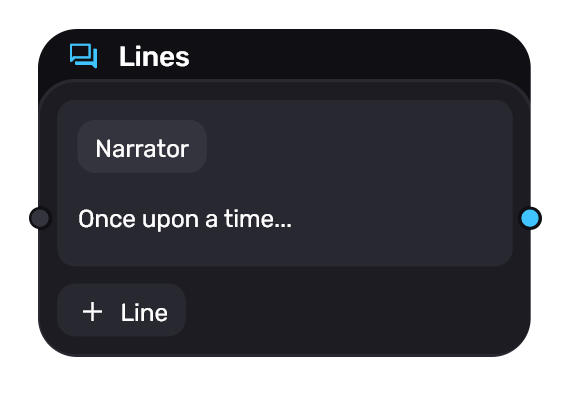
You can enter any text, special characters and even emoji. The maximum text length is 500 characters.
The player always needs to click or tap to read from one line to another.
Adding lines
Click on the “+ Line” button at the bottom. This will create a new sub-block, which you can also fill in.
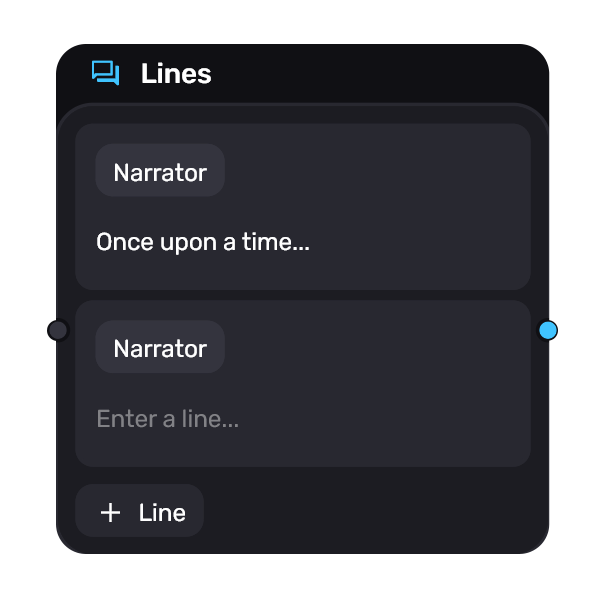
You can create a total of 15 such sub-blocks within a single line block.
Deleting a line and copying
To delete a line, select the subblock with a single click. Then press the Delete or Backspace key. This action cannot be undone!
Selecting with Ctrl+D will copy the line and all its contents, including actors.
Adding Characters
Characters in a line block are actors. First, the actors must be created there. Then there are three methods.
The line block is not yet on the canvas:
- Drag and drop an actor from the left tab to an empty space on the canvas
The line block is already on the canvas:
- Drag an actor from the left tab to the desired subblock of line block
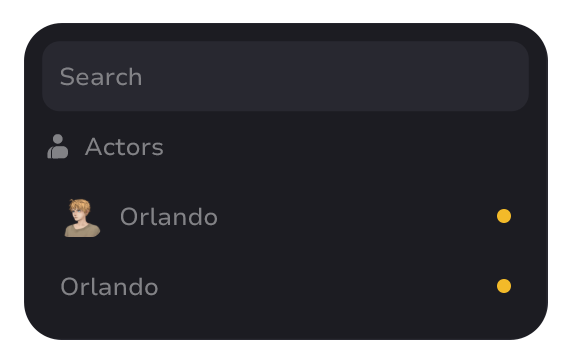
- Click on the current actor (default is “Narrator”) and select the one you want in the modal window
Adding Background
You can add a background in settings.