Preview
You've made a piece of tale and want to see what it will looks like as a result? The Preview window will help you!
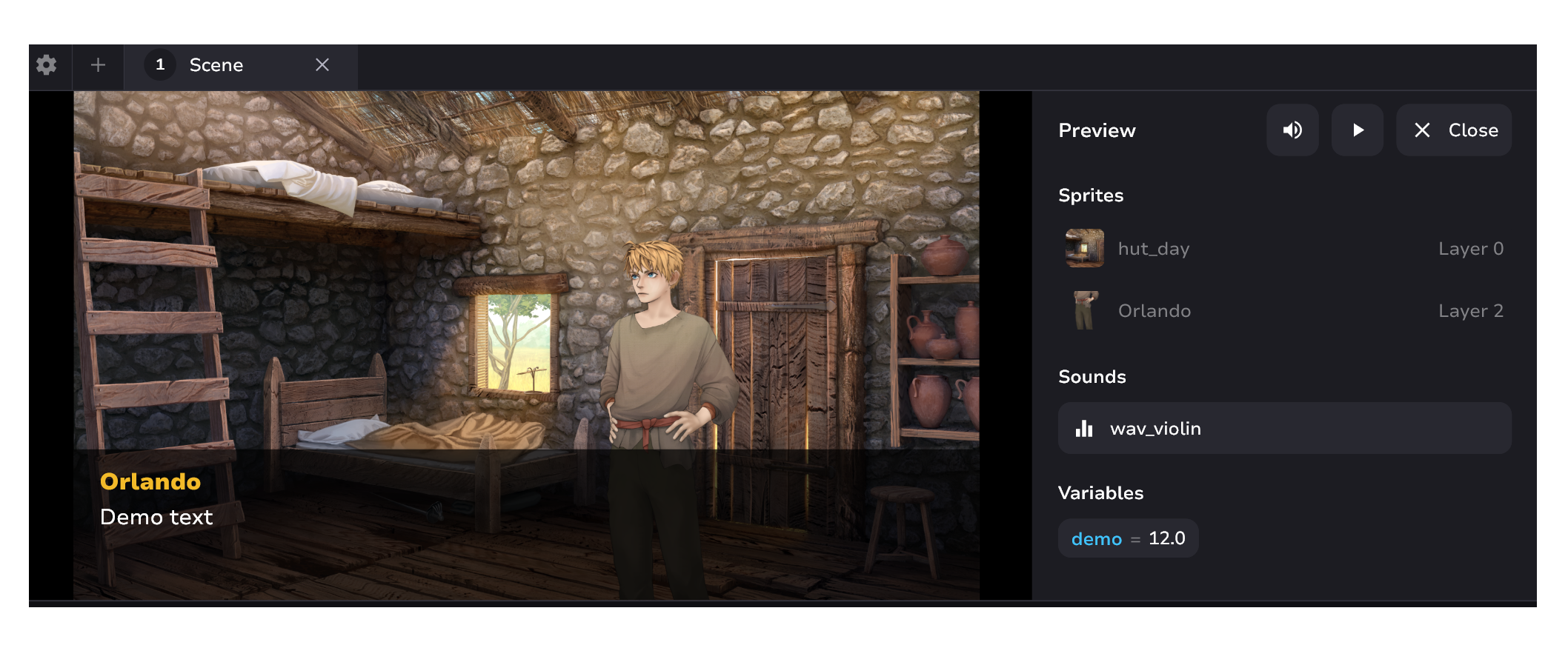
The "Preview" window consists of three elements:
- Viewer - where you can interact with the tale
- Control Buttons of the "Preview" window
- Debug elements - shows all the elements present in the Viewer at the moment
Preview is not just a window to view your tale. It is a complete reflection of what the tale will end up being. You can interact with the tale in real time. That is, you can play it, click, make choices, and read conversations. You don't have to worry about the resolution - it's universal 16x9 for all devices.
Control buttons

- The sound control button allows you to mute and unmute the playing sounds from the viewer.
- "Play" button starts the tale from the beginning.
- A button to close Preview window.
Open and close Preview
To close:
- Click the “Close” button at the top left of the Preview window
- Move the resizer between Canvas and Preview to the top of the tabbed window
To open:

- Click on the "Preview" button in the upper left corner
- Hover over the resizer, pinch, and drag down
How to view tale in Preview
To trigger the Preview you need to:
- Click on any block on the canvas. The tale in the viewer will start with this block.
- Click on "Play" button on the Preview window. The tale in the viewer will start from the launch block of the current scene (tab).
Debug elements
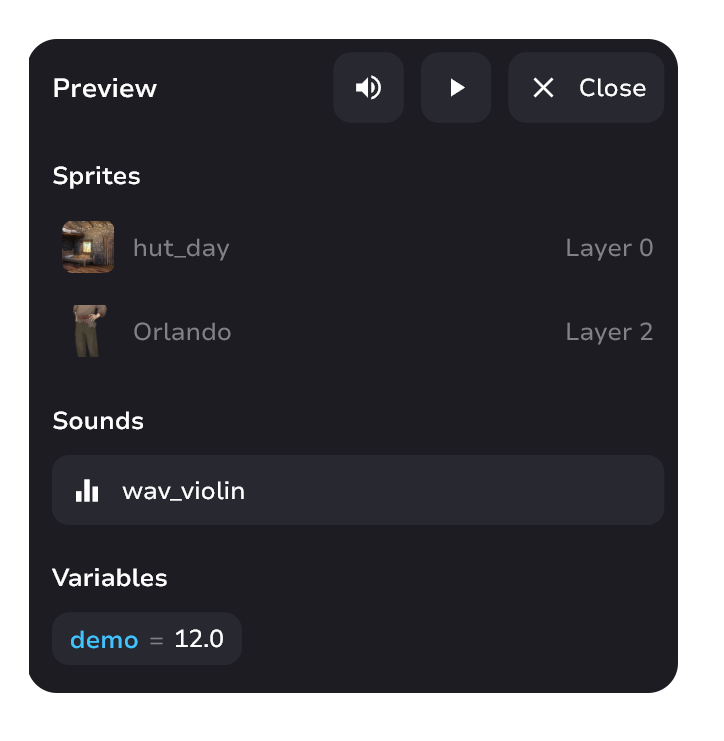
This part of the interface shows you all the items that are currently in the Viewer. This is the context of the current tale. It shows you:
- Sprites
- Active sounds
- Current variables
Sprites also show the layer on which they are arranged. Layers can be adjusted in the sprite block. The larger the number, the closer to the player relative to other sprites.